
We have not tested these products. This comparison is reasoned from manufacturer specifications, documentation and warranty terms. How we test
If you buy through a link on this page we may earn a commission. Retailers do not pay for reviews or placement. Prices are shown as bands, never as figures — the live price is at the retailer. As an Amazon Associate I earn from qualifying purchases. How we make money
On this page
A first build goes wrong in the planning far more often than in the assembly. Parts that do not fit are ordered weeks before anybody picks up a screwdriver. If you have not yet decided against a prebuilt machine, that comparison is worth reading before this one. If you already own a machine, deciding what to upgrade first may make the build unnecessary, and our picks of upgrade parts for an old PC cover the components worth buying.
Decide the resolution first
Everything follows from the monitor you will use. A machine for 1080p and a machine for 1440p high refresh are different budgets, and building for a screen you do not own is how money ends up in the wrong component.
If you are buying the monitor too, resolve it first. It will outlast the machine.
The budget, roughly
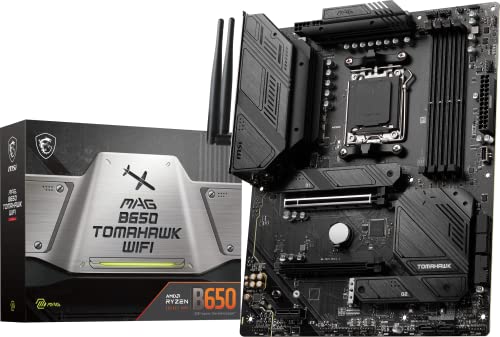
For a gaming machine, the graphics card takes the largest share by a clear margin. The processor should be adequate rather than impressive — matched to the card, then biased downward. Memory and storage are commodity decisions with sensible defaults. The power supply is chosen on capacity and warranty. A board like the MSI MAG B650 Tomahawk WiFi (at Amazon, opens in a new tab) is a forgiving choice here: clear firmware and enough connectivity that you are unlikely to hit a surprise.
Then leave something for the monitor, the desk and the chair, which is where the hours actually get spent.
The five compatibility checks
Socket against processor. Memory generation against board. Card length and cooler height against case. Power supply capacity and connectors against the card. Firmware support against the processor, which is a different question from the socket, and the one a BIOS update exists to solve. A magnetic driver such as the iFixit Essential Electronics Toolkit (at Amazon, opens in a new tab) is worth having before the assembly starts, once the checks above are done.
How we assessed these
The recommendations here rest on published specifications and on the physical and electrical constraints of a working build. Nothing in this guide was tested hands-on, and the evidence note at the top of the page says so. Our step-by-step assembly walkthrough covers the assembly itself, and our tool roundup goes deeper on what to have ready before you start.
Free tool PC Build Compatibility Checker — Will your GPU, PSU, cooler and case actually fit together?What we recommend
 (opens Amazon in a new tab)
 - Band
- $$ Mid tier
MSI MAG B650 Tomahawk WiFi
A forgiving board for a first build: clear firmware, good documentation, room to grow.
- Firmware is clearly laid out for a first-timer
- Enough connectivity to avoid surprises
- Socket leaves an upgrade path open
- Costs more than the entry option
- Full-size format needs a full-size case
 (opens Amazon in a new tab)
 - Band
- $ Budget tier
iFixit Essential Electronics Toolkit
The one tool purchase that prevents the damage a wrong screwdriver does.
- Correct bit sizes for every screw in a build
- Magnetic tip stops screws disappearing into the case
- Useful long after the build is finished
- Duplicates tools some people already own
- Small drivers only, no larger hardware
Questions people ask
What should I spend the most on?
The graphics card, if the machine is for games, because it decides your frame rate more than anything else in the box. After that the monitor, which people underweight badly: a better screen improves every hour you spend at the machine and will outlast two graphics cards. The processor, memory and storage should be adequate rather than impressive, and the power supply should be chosen for capacity and warranty rather than for price.
Where do first-time builders overspend?
Three places, reliably. The processor, where a flagship paired with a mid-range graphics card buys nothing at all. Lighting and cases, which are genuinely a matter of taste but consume budget that would produce more enjoyment in the card or the monitor. And cooling, where an expensive liquid cooler frequently replaces a cheap air cooler that would have handled the same processor without complaint.
How do I know all the parts work together?
Five checks cover almost everything. The processor socket must match the board. The memory must be the generation the board takes. The graphics card must fit the case length and the cooler must fit its height. The power supply must have the capacity and the specific connectors the card requires. And the board firmware must support the processor, which is a separate question from whether the socket matches. Our compatibility checker runs these against your list.